

Showing posts with label Paint.NET Tutorials. Show all posts
Showing posts with label Paint.NET Tutorials. Show all posts
December 02, 2022
How to Make Vignette in Paint.NET
January 23, 2021
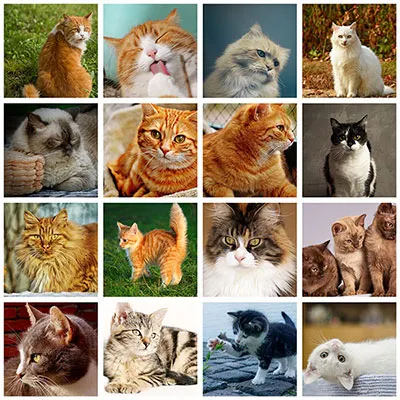
How to Make a Grid Collage in Paint NET (+ Free Online Tool)
December 11, 2020
Placing Multiple Images in Text using Paint.NET

I will use the Text Tool to create the text on canvas, the Move Selected Pixels tool to move and resize the text, and the Magic Wand Tool to create a selection.
December 24, 2019
Create a Kaleidoscope Effect in Paint.NET (+ Free Online Tool)
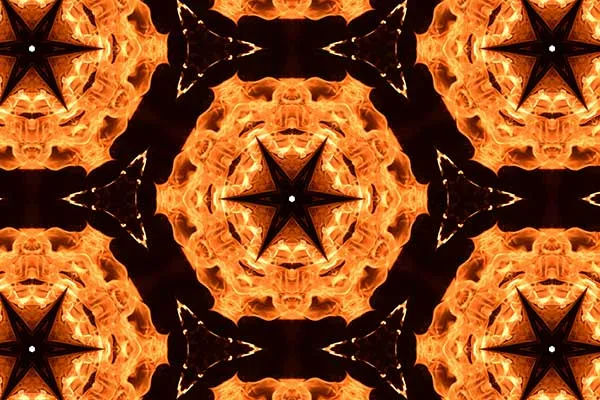
In today's Paint.NET tutorial, I'll show you how to create a Kaleidoscope effect digitally from a given image. We'll start by drawing a rectangle selection, create a triangle image using the Rectangle Select Tool and the Delete key, duplicate, rotate and merging the image several times to form a kaleidoscope. Let's get started!
August 03, 2019
Add a Graphic Watermark to Images in Paint.NET (+ Free Online Tool)

Here is a simple way to add a graphic watermark to an image in Paint.NET where the graphic remains editable. You can use Layers>Import From Files.. to add a graphic, resize the graphic using the Move Selected Pixels tool, adjust the position of the graphic using the Move Selected Pixels tool, and you can adjust its opacity in the Layers window.
August 02, 2019
Add a Text Watermark to Images in Paint NET (+ Free Online Tool)

Learn how to add a text watermark to an image in Paint.NET quick and easy. Add a text using the Text Tool, resize it using the Move Selected Pixels tool, adjust the text position using the Move Selected Pixels tool, and you can alter its opacity on the Layers window.
July 27, 2019
How to Put An Image Inside Text in Paint.NET (+ Free Online Tool)

This text effect tutorial will take you through the process of how to put an image inside text using Paint.NET. I will use the Text Tool to create the text on canvas, the Move Selected Pixels tool that comes with Paint.NET to move and resize the text, and the Magic Wand Tool to create a selection. Let's get started!
August 16, 2015
How to Make Graffiti in Paint.NET (+ Free Online Tool)

Learn how to create a graffiti using Paint.NET. The first step is to write text on the wall texture, give oil painting effect, give frosted glass effect that resembles handwriting spray paint, then doubled the text layer. We give the topmost text with Multiply blend mode and the bottom text with Overlay blend mode.
How to Change Hair Color in Paint.NET

Learn how to change hair color in Paint.NET using the Paintbrush tool and Gaussian blur filter. The Hair color is made on a separate layer with Overlay blending mode in order to blend with the photo on the background. Hair color changed by selecting a color on the color palette then we brush the hair using Paintbrush. Lastly, give gaussian blur and clean unwanted area using Eraser Tool.
August 15, 2015
How To Create Reflection in Paint.NET
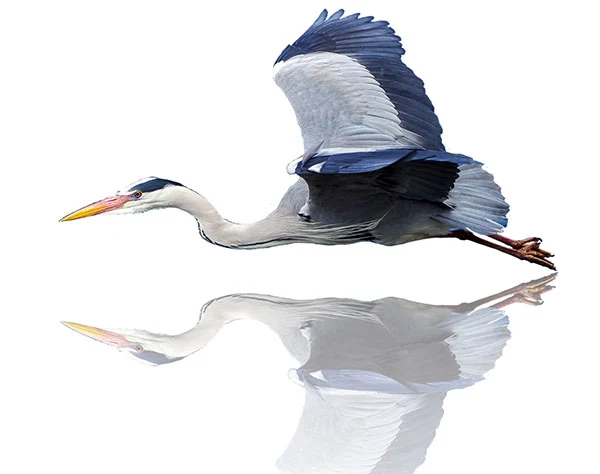
Previously, I made a tutorial on how to create text reflection using Paint.NET. Here is a tutorial on how to make object reflection in Paint.NET. The trick is to duplicate layer, increase the size of the canvas, apply Flip Vertical on the reflection, applying a transparent gradient on the reflection and finally create a new layer for background.
August 12, 2015
Create Text Reflection in Paint.NET

Here is a tutorial on how to make a text reflection effect in Paint.NET. To get good result, you should avoid using letters such as j or y because the letter protrudes downward. Or you can outsmart by write text using capital letters. To give reflection effect, we will use the Gradient Tool. To create text reflection, we can duplicate the text layer and then rotate it using Vertical Flip. We apply the gradient to the text reflection.
August 11, 2015
How to Sharpen an Image in Paint.NET (+ Free Online Tool)

In this tutorial, I'll show you how to sharpen an image in Paint.NET. Every digital photo needs some amount of sharpening because any digital camera always blurs an image to some extent. That's why sharpening an image is something every photographer has to learn. Sharpening will make the image look crisper and making the edges more distinct. It all depends on the file and the final medium.
May 09, 2015
Remove Image Background in Paint.NET

Learn how to replace the background image with Paint.NET. The point is that we make the selection in the area that we want to remove it using a selection tool, then we remove it using the Delete key keyboard, leaving a transparent background. Open a new background picture. Copy the main photo by choosing Edit> Select All then Edit> Paste Into New Layer. In this tutorial, we will use the magic wand selection tool and eraser tool.
Selective Coloring in Paint.NET (+ Free Online Tool)

Learn how to create selective coloring in Paint.NET. We'll begin by duplicating the image layer, desaturate the duplicate layer using Black and White Adjustments, remove parts of the active layer using the Eraser tool, adjust brightness/contrast using brightness/contrast adjustments, adjust hue/saturation, and add noise to the image.
May 06, 2015
How to Make a Sunset Effect in Paint.NET

You may want to change your photo into a sunset. Over the following steps, I'll show you how to convert your picture into a sunset picture in Paint.NET. This technique will work with almost any day images. Even if you've never used Paint.NET, it will only take a few minutes to learn the basics and get started on your sunset.
We'll create a new layer for the sunset effect above the original image, fill the new layer with an orange color, and change its blend mode from Normal to Overlay. If you need a darker sunset effect, you can just duplicate the original image layer and change its blend mode to Multiply and alter its opacity until you are happy with the result.
Tilt Shift Effect Tutorial in Paint.NET
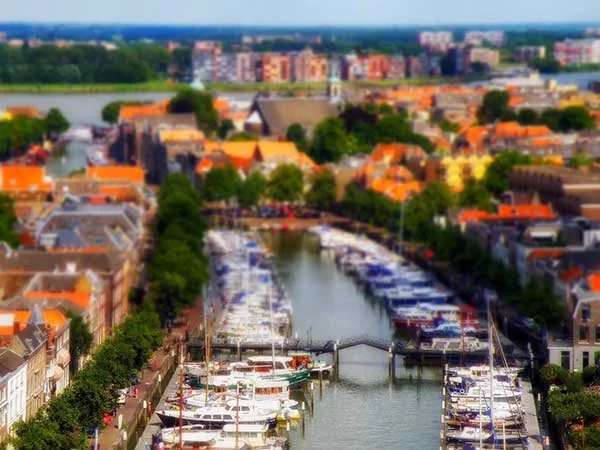
Here is the easy way to create a tilt-shift effect in Paint.NET using the Gaussian Blur, the Gradient tool, and the Hue/Saturation adjustments. We'll begin by duplicating the image layer, apply the Gaussian Blur to the duplicate layer, draw a gradient and then adjust saturation using the Hue/Saturation adjustments. Let's get started!
May 04, 2015
How to Make Fisheye Effect in Paint.NET (+ Free Online Tool)

In this Paint.NET tutorial, I'll show you how to create a fisheye effect using the Ellipse Select Tool and Bulge filter that comes with Paint.NET.
We'll start by drawing a circle selection, invert the selection, fill the selection with Black, invert the selection again, apply Bulge filter to the selection and Crop the image. Let's get started!