Showing posts with label GIMP Tutorials. Show all posts

November 29, 2023

How to Change Image Background in GIMP

How to Change Image Background in GIMP

In this tutorial, we'll learn how to change image background in GIMP. Let's get started!

February 24, 2022

How to Create a Graffiti Effect in GIMP (+ Free Online Tool)

How to Create a Graffiti Effect in GIMP
In today's tutorial we'll learn How to Create a Graffiti Effect in GIMP. Free photo processing application GIMP, has Bump Map Filter. We can use this filter to create a graffiti effect. This filter will make the text that we make look blended with the background photo.

February 10, 2022

Creating sticker with GIMP

Creating sticker with GIMP
Learn how to create stickers in GIMP by creating a selection, fill the selection using color we like, then adding a drop shadow filter. You can fill in the sticker using a photo or just text using the Text Tool. The sticker fold effect can be created by making a selection, cutting the selection and pasting it on a separate layer, then our cut results are rotated 180 degrees. For the shadow of the sticker folds, we can use the Paintbrush Tool. Please follow the steps below for how to make stickers using GIMP!

June 20, 2020

How to create transparent text effect in GIMP

How to create transparent text effect in GIMP
In today's tutorial we'll learn how to create a transparent text effect in GIMP. The first step is to create a transparent layer on top of the photo, then fill it with the color we want, adjust the photo layer size, write text on the canvas, make a selection from the text we made and finally delete the transparent layer according to the text selection.

February 26, 2020

How to Turn a Picture into a Watercolor in GIMP

How to Turn a Picture into a Watercolor in GIMP
Learn how to turn a picture into a Watercolor in GIMP. We'll create the watercolor effect using different textures and different layer's modes. Add the texture to canvas using Open as layers command and scale it using the Scale tool. Once you have arranged it to your satisfaction, you can play around with other Blend Modes. 

February 09, 2020

How to remove background in GIMP (Paths Tool)

How to remove background in GIMP (using Paths Tool)
In today's tutorial, we're going to learn how to remove background in GIMP and make it transparent using Paths tool. The Paths tool is all about drawing path. Draw the path around the subject by clicking successively. You can create curves by dragging on a new node or segment. Ctrl + Click on the Final node to close the Loop. To make selections with the Paths Tool, we simply convert the path we've drawn into selections.

January 27, 2020

Sharpen Image Edges in GIMP High Pass Filter (+ Free Online Tool)

Sharpen an Image in GIMP (High Pass Filter)
In this tutorial, I will show you how to sharpen image edges in GIMP 2.10.14 using the High pass filter.

Sharpening works by increasing contrast at edges in the image. Remember to reduce image noise before sharpening so that you don’t intensify the noise. The best way to sharpen an image is by using separate layers. Make separate layers for noise reduction and high pass filter.

January 07, 2020

Create a Blueprint Effect in GIMP (+ Free Online Tool)

Create a Blueprint Effect in GIMP
In today's tutorial, I'm going to show you how to create a Blueprint Effect in GIMP. We'll be using the Paths tool to trace around the main image, desaturate the image's layer using Color>Hue-Saturation, using Filters>Edge-Detect>Edge to transforms the image's layer into a line drawing, using Edit>Stroke Selection to add a white stroke to the image and using Filter>Render>Pattern>Grid to create the  grid pattern.

April 24, 2019

Create a Kaleidoscope Effect In GIMP (+ Free Online Tool)

Create a Kaleidoscope Effect In GIMP
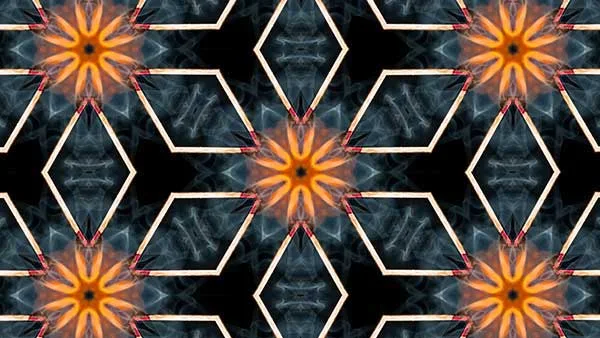
Kaleidoscope is a geometric shape composed of shapes and colors with a symmetrical arrangement. In today's GIMP tutorial, I'll show you how to create a Kaleidoscope effect in GIMP from a given imageOnce the image is open in GIMP, we'll build up the kaleidoscope by creating a triangle shape, duplicating, rotating, and merging the layer several times to achieve symmetry. Let's get started!

September 30, 2018

Jigsaws Puzzle Collage in GIMP

Puzzle Collage in GIMP
In this tutorial, I'll show you how to create a puzzle photo collage in GIMP. We will use render filter to create a jigsaws pattern, the Fuzzy Select Tool to select jigsaws piece, Shrink Selection command to create a border, the Select by Color to select jigsaws piece, the Scale Tool to re-size images, the Move Tool to align images, and Layer Mask that comes with GIMP. Let's get started!

September 21, 2018

How to Create a Spherical Collage in GIMP

How to Create a Spherical Collage in GIMP
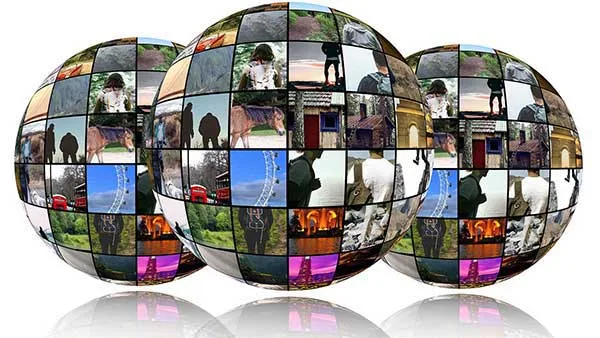
In this GIMP tutorial, we are going to learn how to create a spherical photo collage. We'll be using the Ellipse Select Tool and the Spherize filter that comes with GIMP. To create the reflection, we will use a layer mask and the gradient tool. We can play around with GIMP's many tools to add our own artistic effects. Let's get started!

September 18, 2018

Heart Shaped Photo Collage in GIMP (+ Free Online Tool)

Heart Collage in GIMP (Free Template)
In this tutorial, we'll learn how to create a Heart Shaped Photo Collage in GIMP. We'll be using the Rectangle Select Tool, the Grid, the Move Tool, the Scale Tool and Layer Mask that comes with GIMP. Once you have arranged all shapes to form a heart-shaped collage, you can play around with other GIMP's tools to add your own artistic effects. Let's get started!

September 13, 2018

Triangle Grid Photo Collage in GIMP [Free Template]

Triangle Grid Photo Collage in GIMP (Free Download)
In this tutorial, we are going to learn how to create a triangle grid photo collage in GIMP. We'll be using the Grid, the Paths Tool to create a triangle path, the Move Tool to align the triangle, the Scale tool to resize the triangle and Layer Mask to clip images into the triangle layer. Let's get started!

September 10, 2018

Squares Collage in GIMP (+ Free Online Tool)

How to Create a Rectangle Collage in GIMP (Free Template)
In today's tutorial, I am going to show you how to create a rectangle/squares/grid collage in GIMP. The trick is by creating a rectangle shaped selection using the Rectangle Select Tool, create a new layer for the rectangle shape, fill the selection with a gray color, insert an image into the document as a layer, then add a layer mask. Next, you can duplicate the square layer as many as you want.

April 10, 2017

GIMP Collage of Polaroids Using Layer Mask [New Guide]

GIMP Collage of Polaroids Using Layer Mask
Today's tutorial will explain to you as to how to create a collage of Polaroids for a given image in GIMP. We will use the Scale Tool to resize the image, the Move Tool to move the image, the Rectangle Select Tool to draw rectangle selection, Drop Shadow to add a drop shadow,  the Rotate Tool to rotate a Polaroid's frame and Layer Mask to insert the image.

March 13, 2017

Multi Diamond Photo Collage Template in GIMP (+ Free Online Tool)

Multi Diamond Photo Collage Template in GIMP
In today's tutorial, I am going to show you how to create a 4 sided polygon collage using the Rectangle Select Tool and Layer Mask that both come with GIMP. We will use the Rectangle Selection tool to draw 4 sided polygon shapes and use Layer Mask to insert images into shapes. Once you have arranged all the rectangle shape to your satisfaction, you can play around with other GIMP's tools to add your own artistic effects.

March 11, 2017

How to Make a Circle Photo Collage In GIMP

Circle Photo Collage In GIMP (Download Free Template)
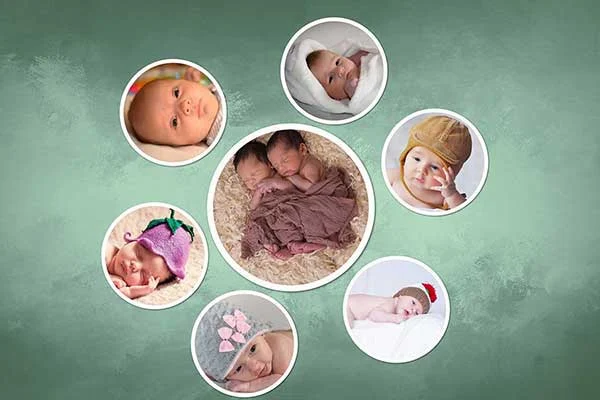
Learn how to Make a Circle Photo Collage In GIMP. The trick is by creating a circle shaped selection using the Ellipse Select Tool, create a new layer for the circular shape, fill the selection with the color you choose, insert an image into the document as a layer, then add a layer mask. You can add a drop shadow filter if desired. Next, you can duplicate the circle layer as many as you want.

February 14, 2017

Selective Coloring in GIMP (+ Free Online Tool)

Selective Coloring in GIMP
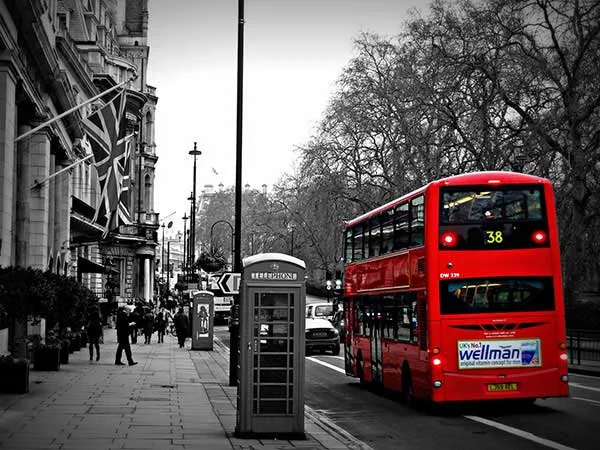
In today's tutorial, I'll show you how to create a selective coloring in GIMP. We will be using Desaturate command to convert all of the colors on the active layer to corresponding shades of gray, layer mask to make all of the layer fully opaque (or that you will notice any difference in the appearance of the layer if you paint on the layer mask), and the Eraser Tool to remove areas of color from the current layer. 

November 03, 2016

Turn A Photo Into A Collage Of Polaroids In GIMP

Turn A Photo Into A Collage Of Polaroids In GIMP
In today's tutorial, we are going to learn how to turn a photo into a collage of Polaroids in GIMP . (See a new version and easier for this polaroids tutorial: GIMP Collage of Polaroids Using Layer Mask). We'll be using the Rectangle Select, the Rotate, the Move Tool and Drop Shadow that comes with GIMP. Once you have arranged it to your satisfaction, you can play around with other GIMP's tools to add your own artistic effects.

October 25, 2016

Add a Graphic Watermark to Photo in GIMP (+ Free Online Tool)

Add a Graphic Watermark to Photo in GIMP
Learn how to add a graphic watermark to an image in GIMP with these simple steps where the graphic remains editable. You can just add a text watermark using the Text tool or a simple graphic watermark to your images using “Open as Layers” command. Then resize the graphic using the Scale Tool, adjust its position using the Move Tool, and you can adjust its opacity on the Layers dialog.